Document Management
Files, photos, and paperwork live on the records they belong to — not in a shared folder that nobody can navigate. Attach documents to jobs and leads, organize them with tags, annotate photos directly in the browser, and share job galleries with customers through time-limited public links.
What document management covers
- Job and lead document attachment with tag labels
- Cross-entity document library with search and filtering
- In-browser photo annotation with drawing tools
- Shareable job photo galleries with expiry and revocation
- Public gallery access without requiring customer login
Documents attached where they belong
Files live on the job or lead record they relate to — not in a generic shared folder. When a team member opens a job, all the related documents are there without a separate search.
Job documents
Attach any file to a job record — site photos, engineer drawings, signed work orders, inspection reports, before-and-after images, or any other file relevant to the work. Documents attached to a job are visible to every team member who has access to that job.
- Upload one or multiple files per job
- Tag documents with labels for easy filtering and search
- Edit document details and labels after upload
- Preview images inline without downloading
- Download documents individually
Lead documents
Attach site photos, competitor quotes, signed scope documents, or any other file to a lead record during the sales process. Lead documents carry the same tag-based organization as job documents so they are searchable from the document library once the lead converts.
- File attachment at the lead stage, not just after a job is created
- Tag labels for categorization and library search
- Edit tags and metadata after upload
- Visible from the lead detail document tab
Tag labels
When uploading or editing a document, assign comma-separated tag labels — "before photos", "as-built", "warranty", "customer-signed", or any label that matters to your workflow. Tags make it practical to filter documents in both the record view and the company-wide library.
- Free-text tag entry, comma-separated per document
- Multiple tags per document
- Tags appear as chips in the document list
- Tag-based filtering in the document library
Documents on each record
- Job documents: visible on the job detail document tab
- Lead documents: visible on the lead detail document tab
- Image files can be annotated in-browser
- All documents searchable from the central library
- Tags filter across the full document set
Company-wide document library
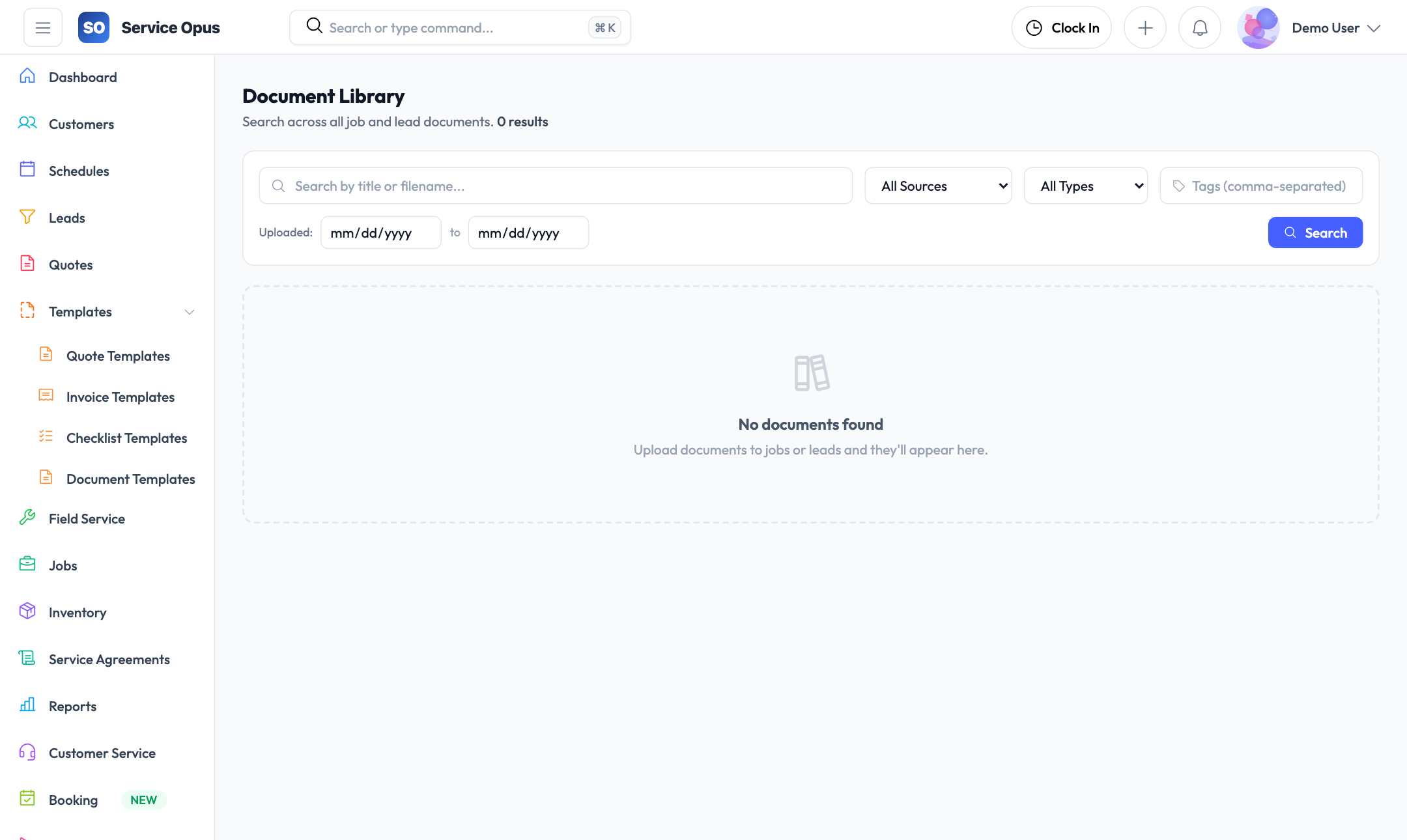
The document library brings all job and lead documents together in one searchable, filterable view — regardless of which job or lead they were attached to.
Cross-entity search
Search document names and tags across both job documents and lead documents in a single query. Find "as-built drawings" or "warranty certificate" without remembering which job they were on.
Tag filtering
Filter the library by one or more tag labels to narrow the results. Useful for pulling all "inspection reports" or "signed work orders" across every job in a date range.
Source context
Every document in the library shows which record it came from — the job name or lead name — so you can navigate directly to the source record from the library view.
Date-range filtering
Filter the document library by upload date or document date to find files from a specific period without scrolling through the full history.
Download from library
Download any document directly from the library view. Image files can be previewed inline and annotated without leaving the library.
Annotate from anywhere
The photo annotation tool is accessible from the job document list, the lead document list, and the document library. No need to navigate to the source record just to mark up an image.
Photo annotation
Mark up site photos directly in the browser without downloading them to an external editor. Annotations are saved as a new version of the image — the original is never overwritten.
Drawing tools
The annotation toolbar gives you the tools needed to mark up field photos for defect documentation, job scope markup, or customer-facing visual explanations. Annotations are rendered at the display resolution of the image for clear output regardless of screen size.
- Freehand path — draw any shape or line by hand
- Rectangle — draw filled or stroked rectangles to highlight areas
- Arrow — draw arrows with arrowheads to point to specific elements
- Text labels — add floating text to any part of the image; commits on Enter or focus loss
Annotation controls
Work accurately with control options that keep annotation productive without becoming complex.
- Color picker — choose any stroke or fill color per tool
- Stroke width — adjust line weight for different emphasis levels
- Undo — step back through individual annotation actions (Ctrl+Z)
- Escape — close text input or exit annotation mode without saving
- DPR-aware canvas — annotations render at full device pixel density, capped at 1600px for performance
Saving annotations
When you save, the annotated image is exported from the canvas and uploaded as a new document version. The file appears in the document list alongside the original so you can compare before and after without losing either.
Annotation tool keyboard shortcuts
- Ctrl+Z — undo the last annotation stroke or text label
- Enter — commit the current text label
- Escape — close text input or exit annotation mode
Annotation is available on image files only. PDFs and other document types open in the standard preview.
Shareable job photo galleries
Share job photos with customers or subcontractors through a time-limited public link — no login required on the recipient's side.
Create share links
From any job's media section, create a named shareable gallery link. Give it a title that the recipient will see — "Site Survey Photos", "Completed Work", "Defect Documentation".
Set an expiry date
Every gallery link can have an expiry date. Once the date passes, the link stops working automatically — no manual cleanup required.
Revoke any time
If a share link needs to be pulled before its expiry, deactivate it with a single action. The link stops working immediately.
Public gallery view
Recipients open the link in any browser. They see the job name, all shared photos in a grid, and can download any individual photo. No account creation or login required.
Multiple galleries per job
Create separate share links for different audiences — one for the customer, one for the subcontractor, one for the insurance adjuster. Each can have different titles and expiry dates.
Active link management
The shares panel on a job lists all active and recently expired gallery links so you always know what has been shared and with what expiry terms.
See it in action
Documents that work for your team, not against it
Files attached to jobs, organized with tags, and searchable from a single library — with a photo annotation tool and shareable galleries built in.