Quoting & Estimating
Build detailed, itemized quotes — then move them through approval, customer acceptance, and job conversion without rebuilding the same information at each stage. Service Opus handles the full quote lifecycle so your team spends less time on administration and more time on winning work.
What quoting covers
- Itemized quotes with materials and labor line items
- Internal approval workflow with per-employee approval limits
- Online customer acceptance through the customer portal
- Quote duplication and template reuse
- Expiration date handling and status tracking
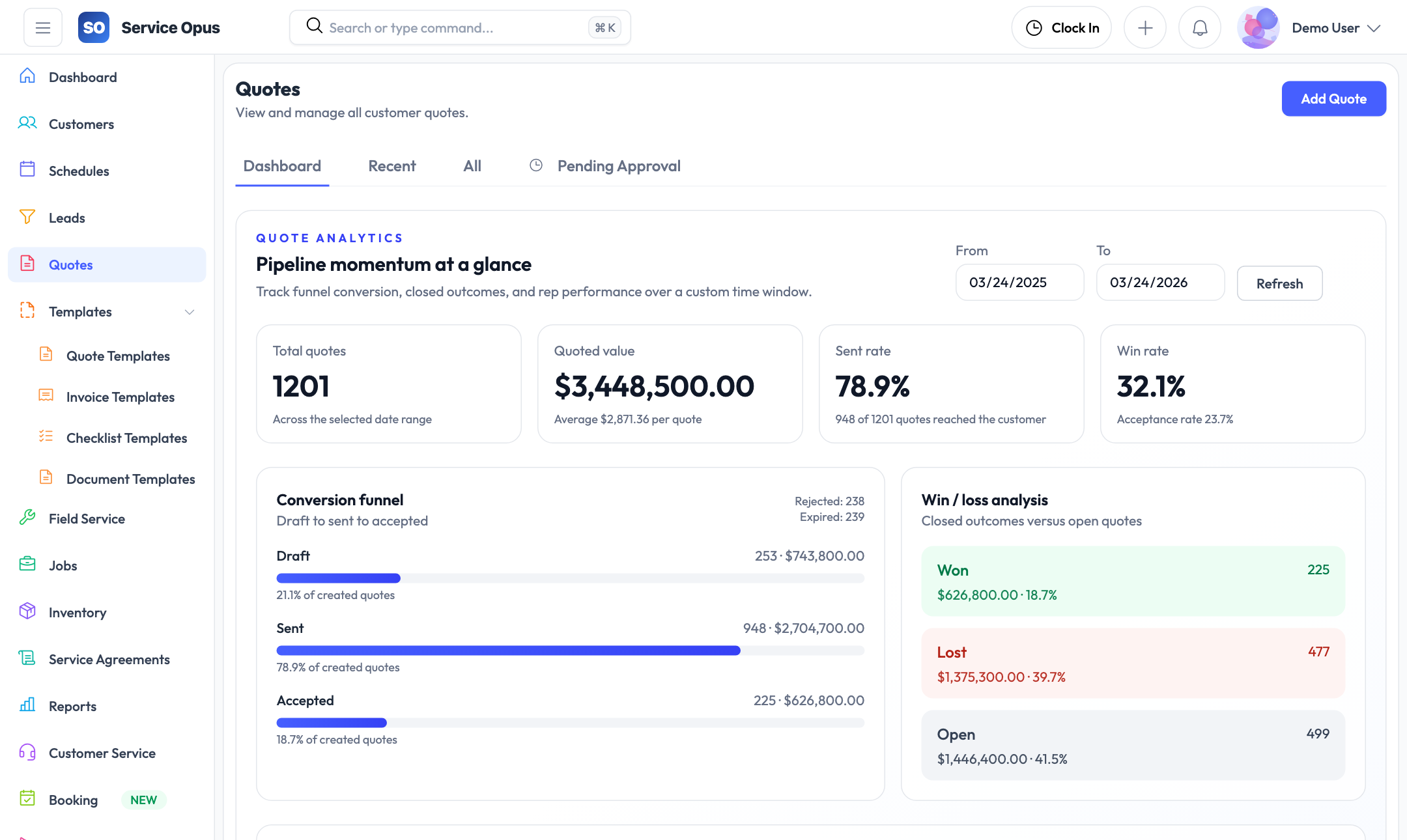
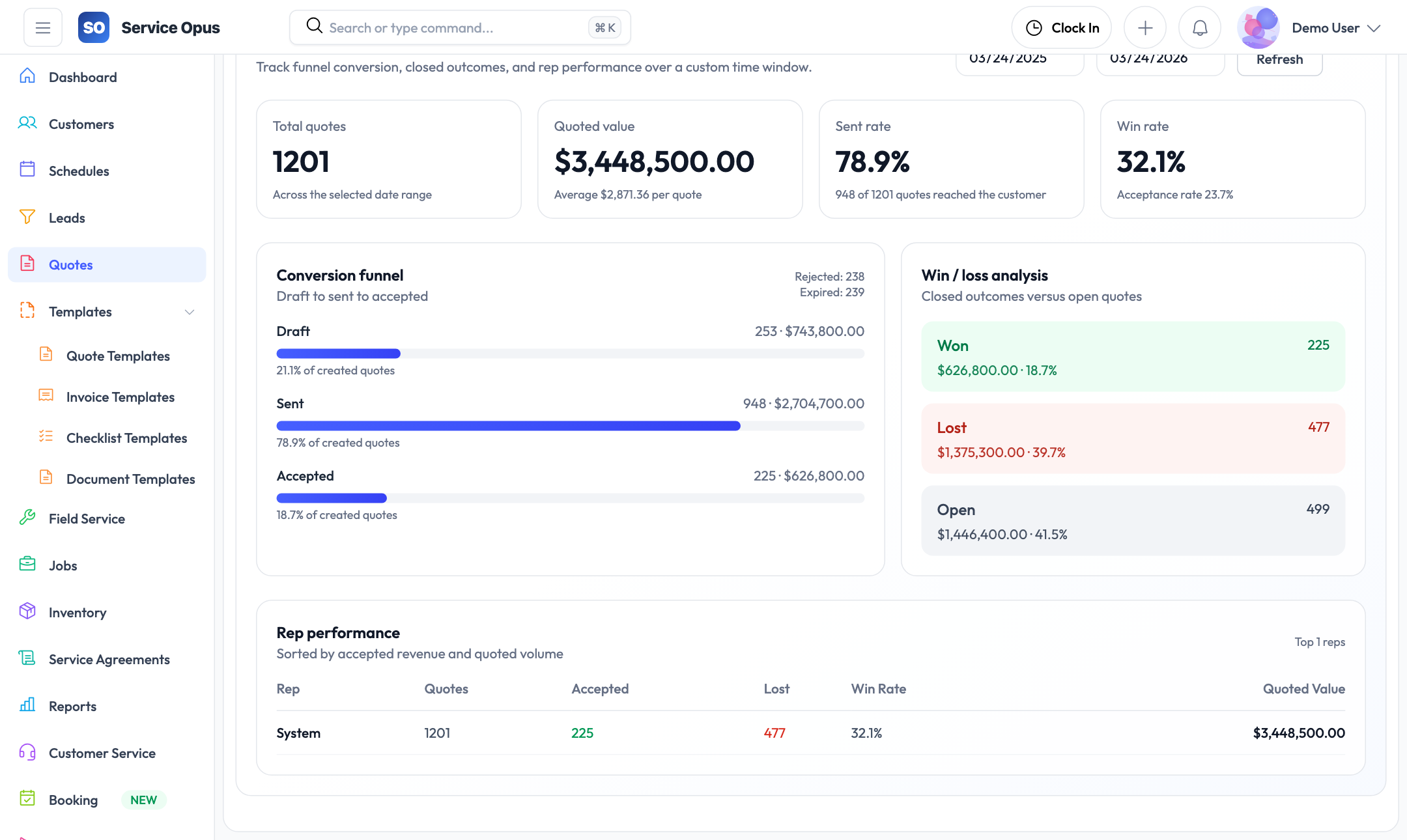
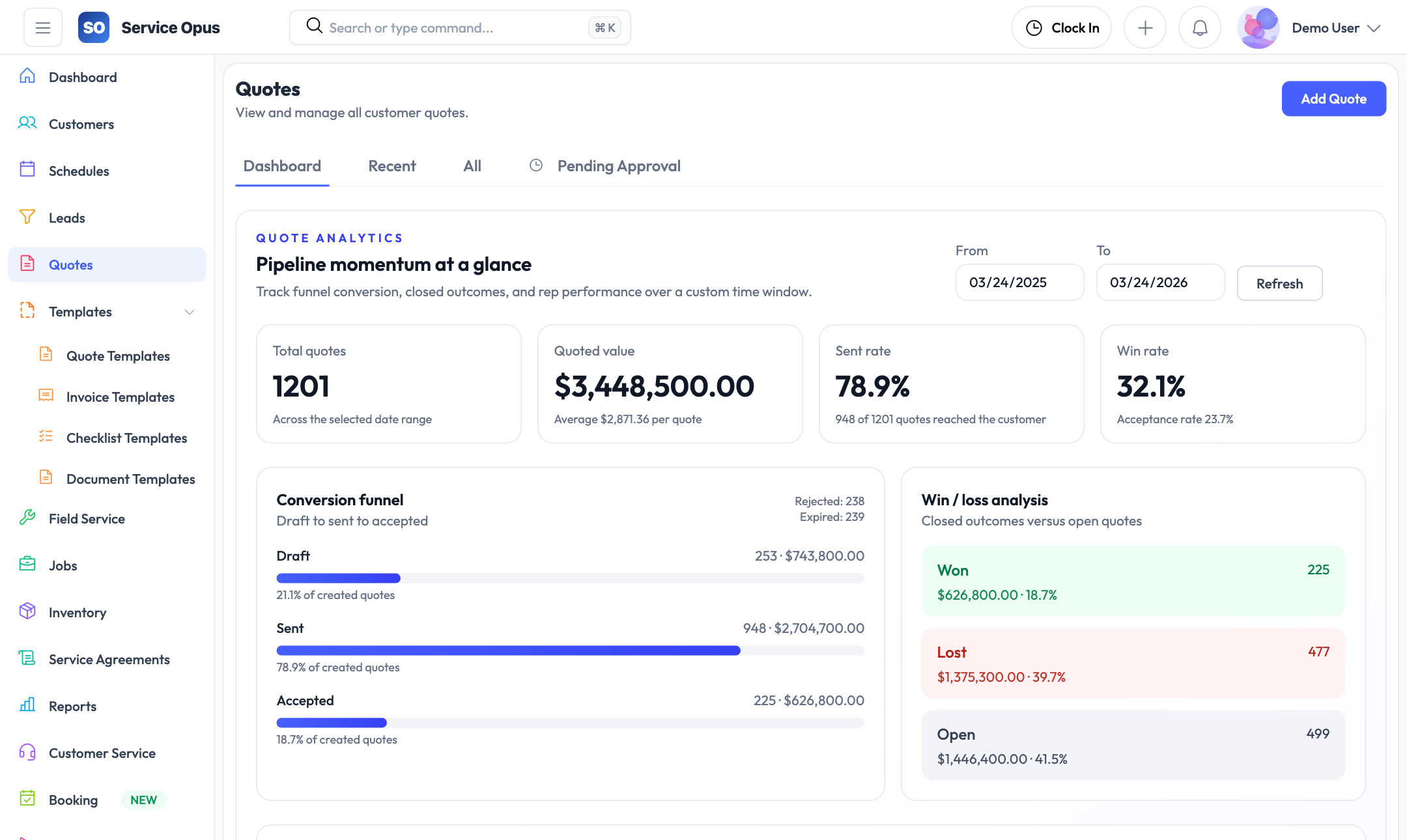
- Analytics: acceptance rates, conversion, and value by status
- Convert approved quotes directly to jobs or invoices
Build quotes quickly, price accurately
A quote in Service Opus is an itemized document linked to a customer. Line items draw from your inventory catalog so prices are consistent and the same items that appear on a quote carry through to the job and invoice without re-entry.
Itemized line items
Every quote is built from individual line items — materials, labor, and other charges. Materials are selected from the inventory item catalog so pricing is consistent across quotes, jobs, and invoices. Labor items specify hours and rate. Additional charges cover anything that does not fit the standard categories.
- Materials from the inventory catalog with catalog pricing
- Labor line items: quantity (hours) and rate
- Additional charge lines for miscellaneous items
- Subtotal, tax, and total calculated automatically
- Line item descriptions editable per quote if needed
Quote templates
When you quote similar work repeatedly, save the quote structure as a template. Templates capture the line items, descriptions, and quantities from a completed quote so they can be applied to a new quote with a single action — giving your team a consistent starting point without rebuilding from scratch.
- Save any quote as a template
- Apply a template to start a new quote with preset line items
- Templates are company-wide and available to all users
- Edit applied line items to adjust for the specific job's scope
Quote duplication
Duplicate an existing quote to create a variation — useful for presenting multiple options to a customer or for reusing a recent quote as the basis for similar work. All line items, descriptions, and settings copy across; the duplicate starts as a new draft ready for editing.
Quote status lifecycle
- Draft — being prepared, not yet sent
- Pending Approval — submitted for internal review
- Approved — cleared by an authorized approver
- Sent — delivered to the customer
- Accepted — customer has accepted online
- Rejected — customer declined
- Expired — acceptance window has passed
- Converted — turned into a job or invoice
Internal approval controls
Approval limits give management oversight of what goes out to customers without creating bottlenecks on everyday quoting. Only quotes above a threshold need a sign-off.
Per-employee approval limits
Each employee has a configured approval limit — the maximum quote value they can approve without escalating. Limits are set per employee and can differ across your team based on seniority or role.
Automatic routing
When a quote is submitted for approval and its total exceeds the submitter's limit, it moves to "Pending Approval" status. An authorized approver — someone whose limit covers the quote value — can then review and approve or reject it.
Approve or reject
Approvers can approve or reject a quote from the quote detail view. Rejected quotes return to draft status with the rejection recorded in the quote history so the author knows what needs to change.
No bottleneck on small quotes
Quotes below the employee's approval limit bypass the approval step entirely and move directly to "Approved" status so small, routine quotes do not wait for a manager sign-off.
Full approval history
Every approval and rejection action is recorded on the quote timeline — who acted on it, when, and the outcome. The audit trail is there if a quote value is ever questioned.
Expiration dates
Set an expiry date on each quote. Once the date passes, the quote status updates to "Expired" automatically. Expired quotes can be duplicated and re-issued as new quotes with a fresh expiry date.
Customer acceptance and job conversion
Once a quote is approved internally, getting the customer's agreement and turning it into work should not require manual steps. Service Opus handles both through the customer portal and the quote conversion action.
Online customer acceptance
Approved quotes can be shared with customers through a secure portal link. The customer views the itemized quote in a clean, readable format and accepts it online. When accepted, the quote status updates to "Accepted" in Service Opus immediately — no back-and-forth email confirmation required.
- Customer-facing portal view of the quote line items and total
- One-click acceptance from the customer's side
- Quote status updates to "Accepted" in real time
- Acceptance timestamp recorded on the quote record
Convert to job
Once a quote is accepted, convert it to a job with a single action. The job is created pre-populated with the customer, site, and line items from the quote — so the field team has the full scope of work without any manual re-entry.
- Job created from quote line items directly
- Customer and site carried across to the job
- Quote status updates to "Converted"
- Original quote remains accessible from the job record
Quote analytics
The quote analytics section gives sales and management visibility into pipeline performance — how many quotes are in each status, what their total value is, acceptance rates, and how quickly quotes are moving from sent to accepted or rejected.
- Quote count and value by status
- Acceptance rate over a selected date range
- Time from sent to accepted or rejected
- Value of quotes in the acceptance window vs. already closed
How a quote becomes a job
- 1. Quote built with itemized line items
- 2. Submitted for approval (if value exceeds limit)
- 3. Approved internally by authorized person
- 4. Sent to customer via portal link
- 5. Customer accepts online
- 6. Convert to job — line items carry across
- 7. Job scheduled and dispatched to crew
See it in action
Win more work, faster
Try the quoting workflow with full product access — build a quote, run it through approval, and see how it converts to a job without re-entering a single line item.