Invoicing & Payments
Generate invoices from jobs and quotes, record payments against them, manage payment terms, and configure the accounting foundations your business needs — all in one place. Service Opus handles the full invoice lifecycle from creation through to reconciliation with the accounting chart of accounts.
What invoicing covers
- Invoice creation from jobs, quotes, or from scratch
- Payment recording: partial and full payments
- Payment terms with automatic due date calculation
- Invoice voiding with audit trail
- Invoice templates for consistent formatting
- Accounting setup: GL accounts, tax agencies, payment methods
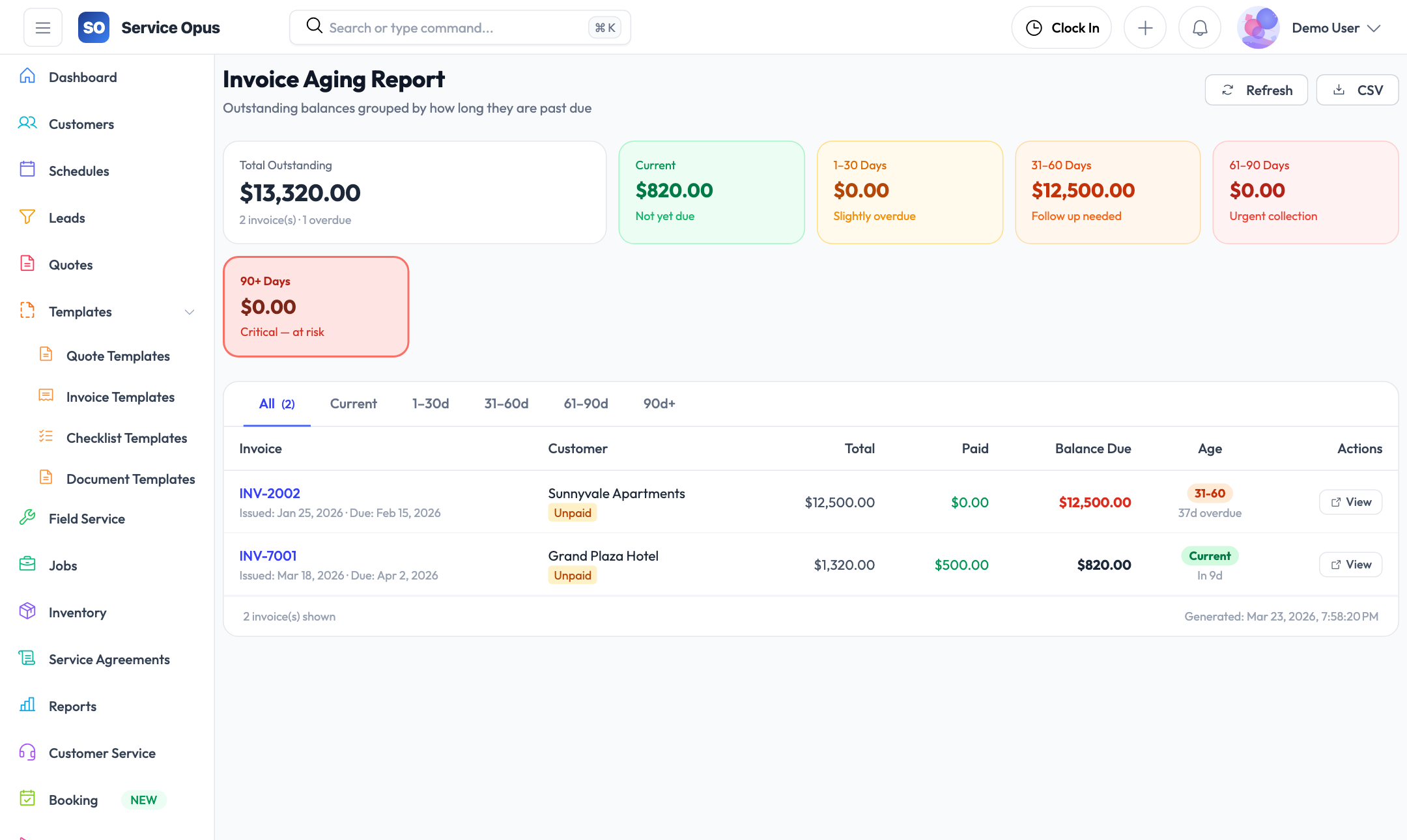
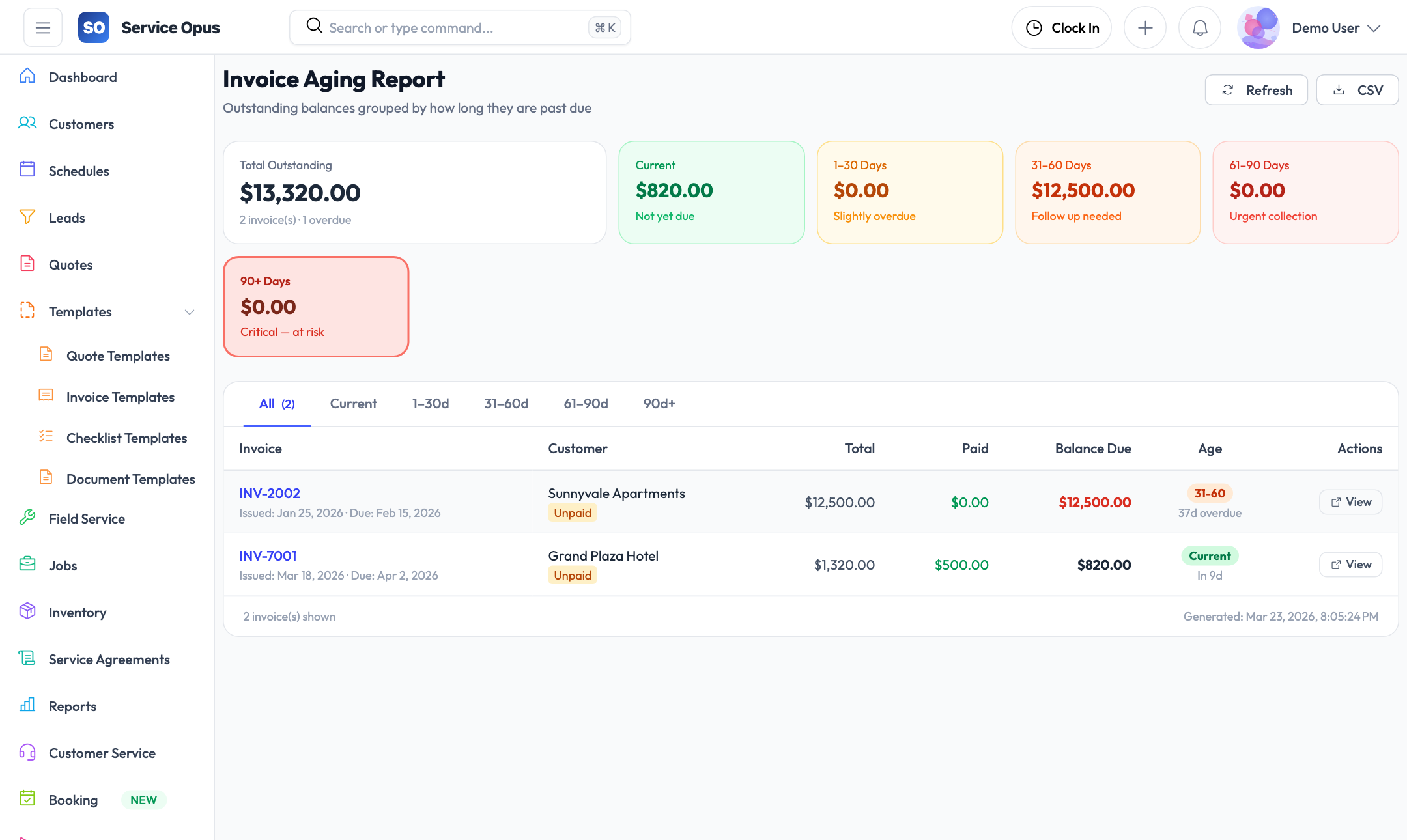
- Customer statements and outstanding balance visibility
Invoices built from the work you already documented
Because jobs and quotes carry itemized line items, generating an invoice does not require starting from scratch. The work scope, materials, and labor are already recorded — the invoice pulls that information through.
Invoice creation
Create an invoice by generating it from a completed job, converting it from an accepted quote, or creating it directly when a standalone invoice is needed. All three paths produce an itemized invoice linked to the customer record.
- Generate from job: line items and customer carry across
- Generate from quote: approved quote line items carry across
- Create standalone: manually enter line items for one-off billing
- Invoice number auto-assigned in sequence
- Issue date and due date based on payment terms
Itemized line items
Every invoice shows the customer a clear breakdown of what they are being charged for — materials with quantities and unit prices, labor with hours and rates, and any additional charges. Itemization reduces payment disputes by giving customers the detail they need to verify the charge against what was agreed.
- Materials, labor, and additional charge line types
- Quantity, unit price, and line total per item
- Tax calculated per line item based on tax rate configuration
- Subtotal, tax, and total displayed clearly
Invoice templates
Create invoice templates to standardize the format and line item structure for recurring invoice types. Templates help ensure consistent presentation across all your invoices and reduce the time taken to set up standard billing documents.
- Save and reuse invoice line item structures as templates
- Company-wide availability across all users
- Apply template and adjust line items to the specific job
Invoice status lifecycle
- Draft — being prepared, not yet issued
- Sent — issued to the customer
- Partially Paid — one or more payments recorded, balance outstanding
- Paid — fully settled
- Voided — cancelled with audit record; cannot be edited after voiding
Payment recording and tracking
Record payments against invoices as they arrive — whether partial deposits, progress payments, or full settlement. Service Opus tracks the balance outstanding so nothing falls through the cracks.
Record payments
Log each payment against the invoice with the date, amount, and payment method. Partial payments are supported — the invoice tracks cumulative payments received and calculates the remaining balance automatically.
Payment methods
Configure the payment methods your business accepts — bank transfer, credit card, cheque, cash, EFTPOS, or any other method. Payment method is recorded on every payment entry for reconciliation.
Payment terms
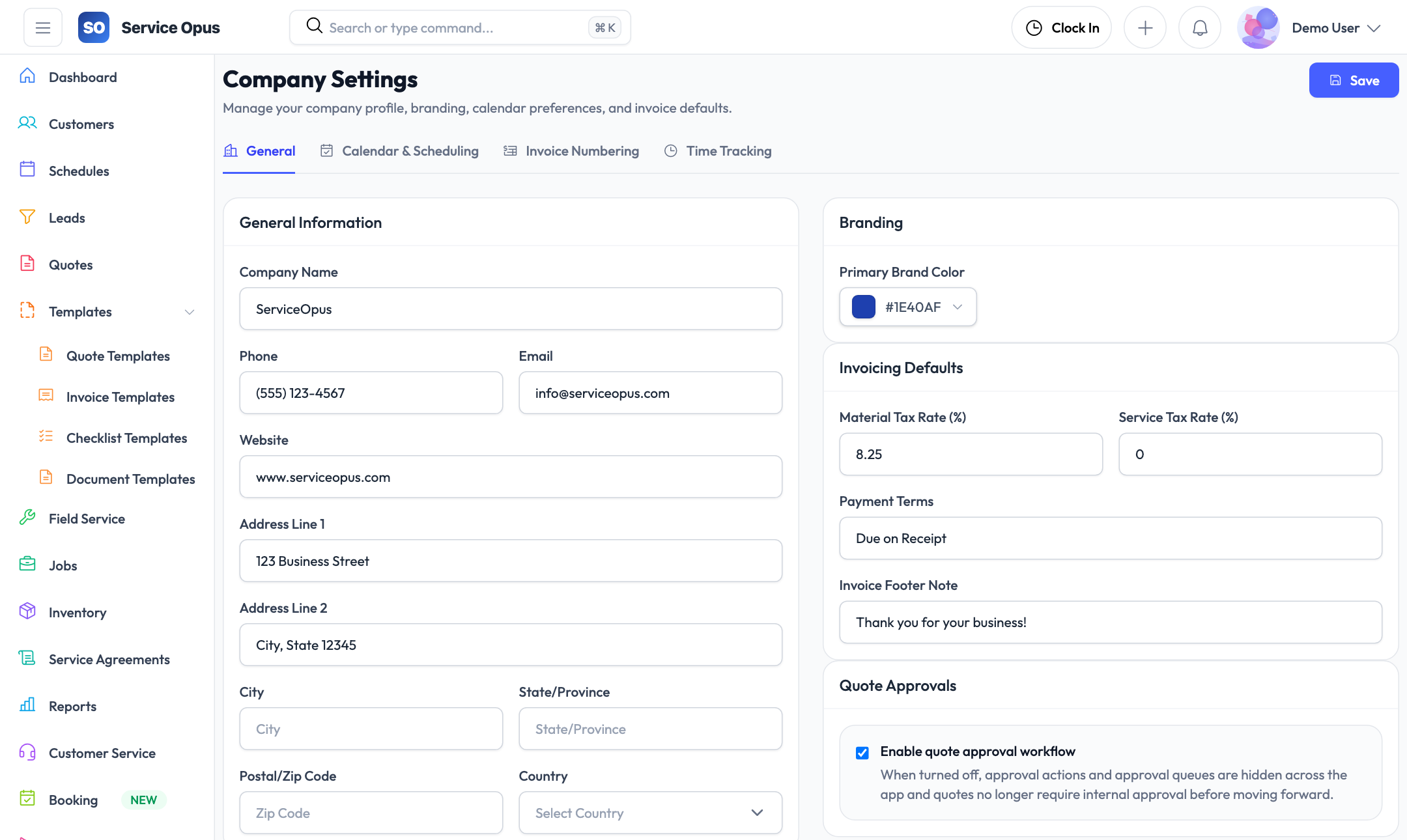
Define your standard payment terms — Net 30, Net 14, Due on Receipt, or custom day counts. When an invoice is issued, the due date is calculated automatically based on the terms applied. Terms can be set at the company level and overridden per invoice.
Customer statements
Generate a statement for any customer showing all their invoices, the amounts, payment dates, and outstanding balances. Statements give your accounts team and the customer a clear view of the relationship's financial position.
Expense tracking
Log job expenses — fuel, materials purchased on-site, subcontractor costs — against the relevant job. Expense tracking alongside invoice and payment data gives you a more complete picture of job profitability.
Invoice voiding
When an invoice needs to be cancelled, void it with a recorded reason. Voided invoices remain in the system for audit purposes — they cannot be deleted — and their status clearly marks them as cancelled so they do not appear in outstanding balance calculations.
Accounting foundations
Service Opus includes the accounting configuration layer your business needs — chart of accounts, tax setup, and GL mapping — so your invoicing data is structured correctly for accounting from day one.
Chart of accounts (GL accounts)
Configure your chart of accounts within Service Opus. GL accounts are organized by account type — assets, liabilities, revenue, cost of goods sold, expenses, and equity — to match standard accounting classification. These accounts are used in accounting mappings and postings.
- Create accounts with name, code, and account type
- Account types: Asset, Liability, Revenue, COGS, Expense, Equity
- Active/inactive status to retire accounts without deleting history
- Accounts available for mapping to line item types and invoice postings
Tax agencies and tax rates
Configure the tax authorities your business collects for and the rates they apply. Tax rates are attached to invoice line items so tax is calculated correctly on each line based on the item's applicable rate — not a blanket rate applied to the invoice total.
- Create tax agencies (federal, state, local authorities)
- Configure one or more tax rates per agency with percentages
- Tax rates applied at line item level for accurate calculation
- Tax-exempt customers can be marked with tax exemption records
Accounting mappings
Map your invoice line item types and product categories to specific GL accounts. When an invoice is generated, the line items post to the correct accounts automatically — removing the manual GL coding step from your accounts team's workflow.
- Map item categories and service types to revenue GL accounts
- Map materials to COGS accounts
- Mapping configuration visible and editable by authorized users
Accounting postings setup
Configure the default posting rules for how transactions flow from Service Opus to your accounts. Posting setup defines which accounts receivable, revenue, and tax accounts invoices and payments post to by default — consistent, structured output ready for your accounting software or accountant.
Accounting configuration checklist
- ✓ Chart of accounts set up with account types
- ✓ Tax agencies and rates configured
- ✓ Payment methods defined
- ✓ Payment terms configured
- ✓ GL account mappings applied to item types
- ✓ Accounting postings rules configured
- ✓ Customer tax exemptions recorded where applicable
See it in action
Invoice from the work you already documented
Jobs and quotes already carry line item detail. Converting them to invoices and recording payments takes minutes, not hours of re-entry.