Job Management & Scheduling
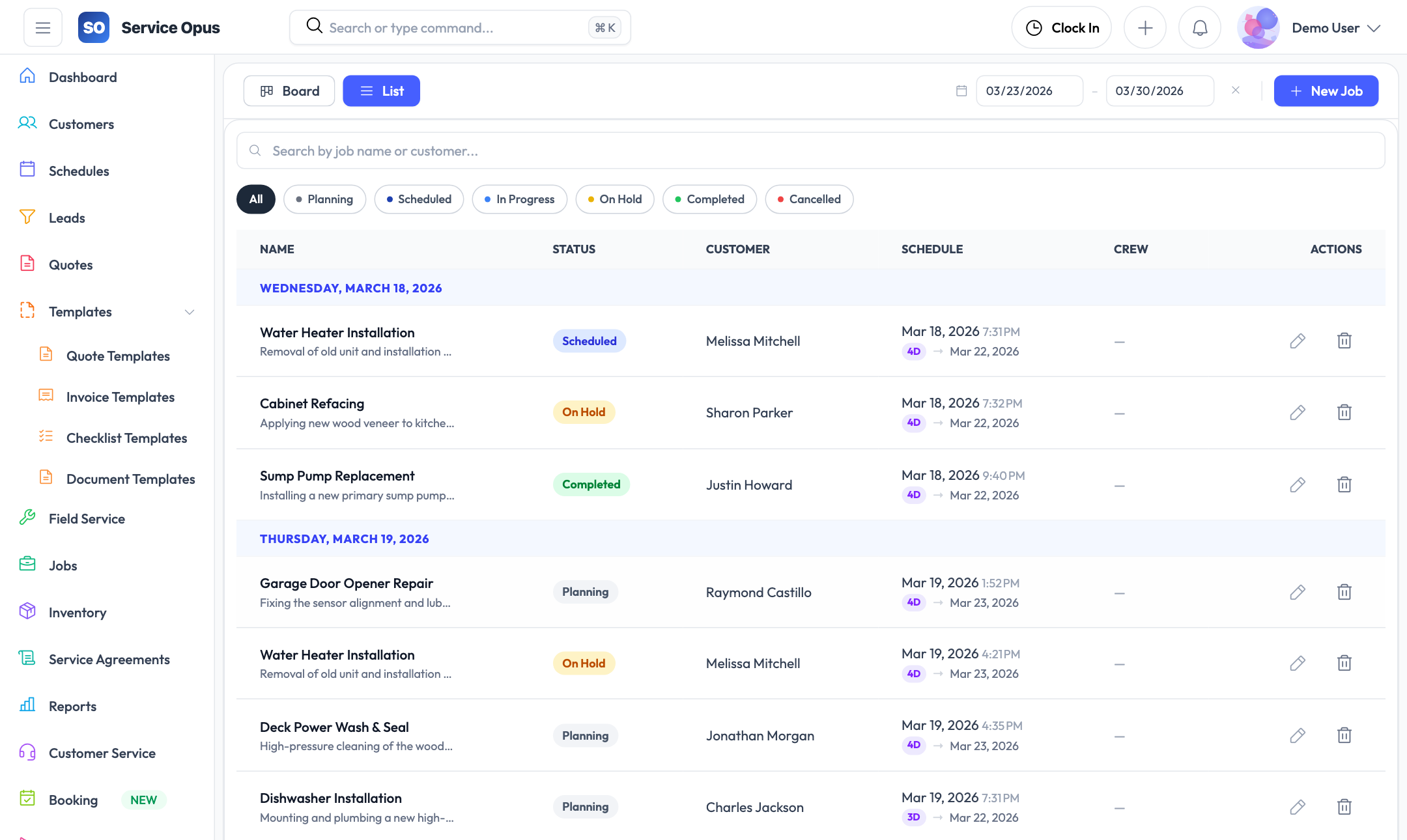
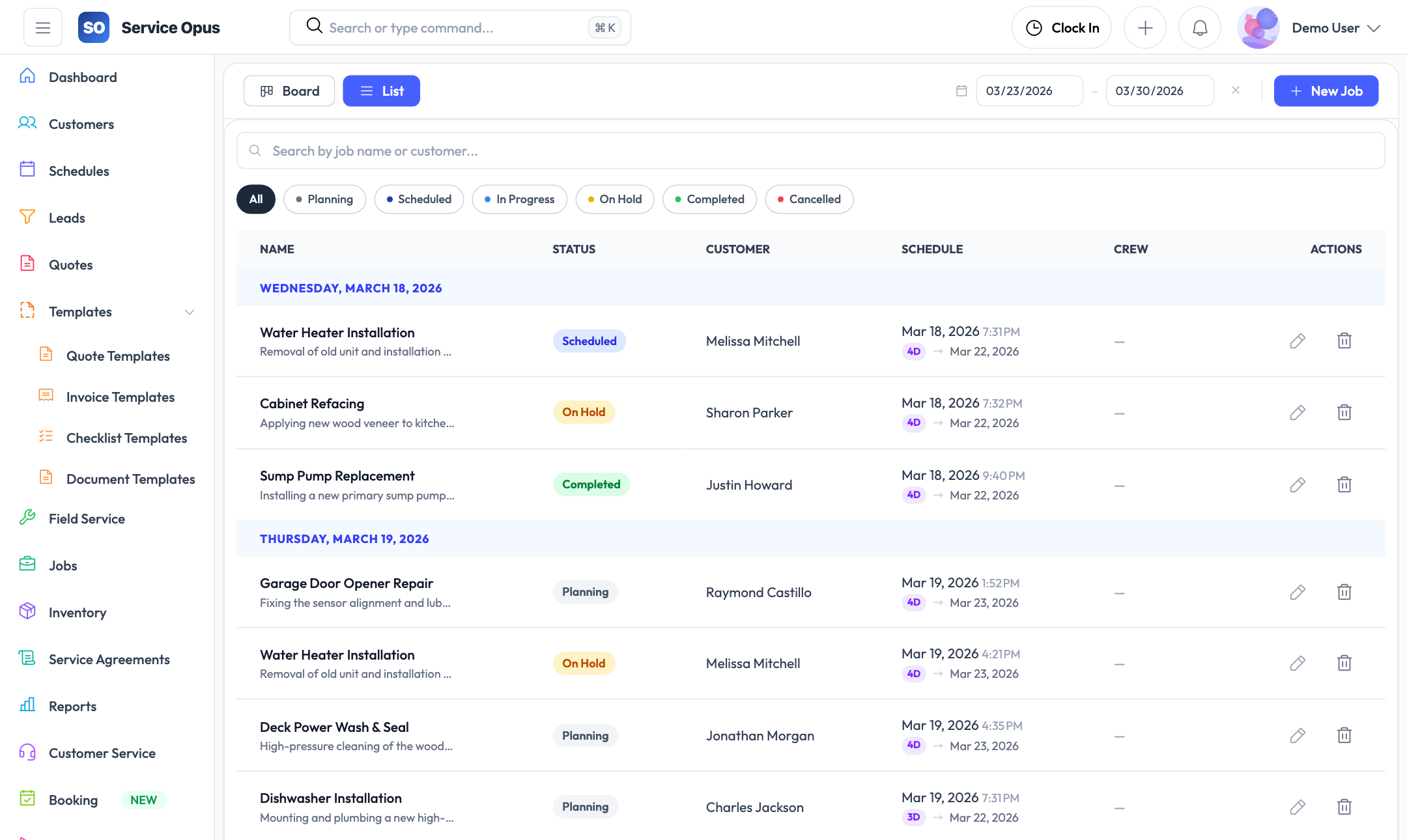
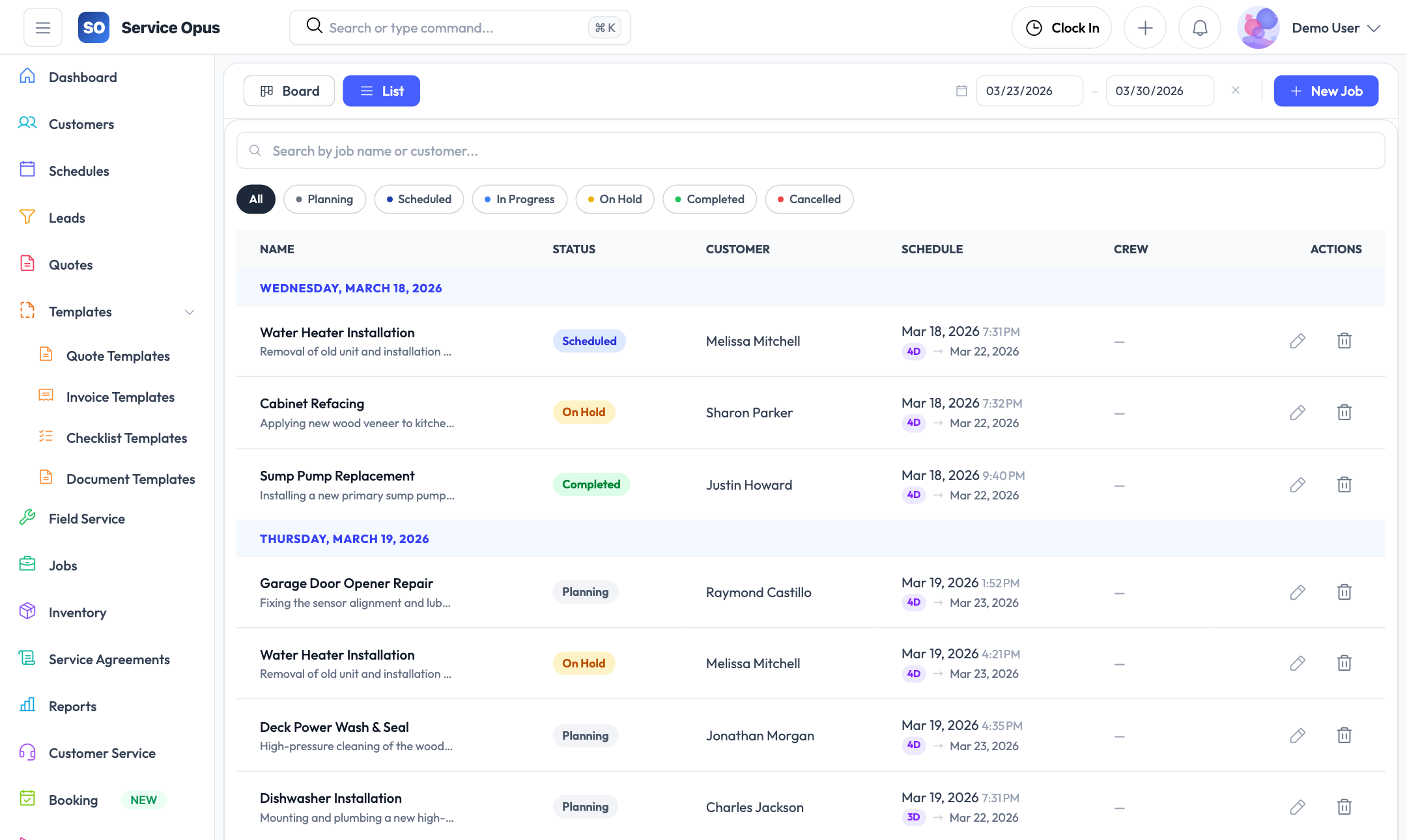
Jobs are the operational centre of Service Opus. From the moment work is dispatched to the moment an invoice is sent, every action — crew assignment, time entry, checklist completion, document upload, and customer communication — lives on the job record so nothing gets missed and your team always has the full picture.
What job management covers
- Job creation with line items, notes, and status tracking
- Crew assignment with required skills and crew suggestions
- Checklists, time entries, documents, and job messages
- Visual swim-lane scheduler and FullCalendar views
- My-agenda personal schedule view per employee
- Job dependencies for multi-stage project coordination
Everything for a job in one place
A job record is more than a work order — it is the operational context that connects your office, your field team, and your customer through the entire lifecycle of the work.
Job creation and details
Each job captures the essential work details: title, description, customer and site, scheduled start and end time, priority level, and current status. Jobs can be created from a converted quote or created directly when work is confirmed without a formal quote stage.
- Customer and site linked to the job record
- Scheduled start and end date/time with calendar visibility
- Job priority (standard, high, urgent) for dispatch triage
- Status tracking through the job lifecycle
- Job reference number for communication with customers
Line items: materials and labor
Add itemized line items to every job — materials from your inventory catalog, labor at configured rates, and any additional charges. Line items on a job form the basis of the invoice when the work is complete, so what was agreed is what gets billed without re-entry.
- Materials linked to the inventory item catalog
- Labor items with quantity and hourly rate
- Additional charges and adjustments
- Line items carry directly to the invoice on job completion
- Job labor cost view: compare quoted vs. actual labor
Job notes and messages
Notes provide internal context that the whole team can see — site access instructions, customer preferences, scope changes, or any other operational detail. Job messages enable direct communication with the customer from within the job record, keeping the conversation history alongside the job it belongs to.
- Internal notes visible to all team members with job access
- Job messages: customer-facing communication from the job record
- Full message and note history in the activity timeline
Job record tabs
- Details — customer, site, schedule, priority, status, line items
- Crew — assignments, required skills, crew suggestions
- Checklists — structured completion checklists
- Time Entries — logged labor time per employee
- Documents — attached files with tag labels and photo annotation
- Notes — internal team notes
- Messages — customer communication
- Purchase Orders — materials ordered for this job
- Safety Incidents — any incidents logged on site
- Activity — full timeline of changes and actions
Crew assignment and skills matching
Getting the right people on each job is the core dispatch decision. Service Opus makes that decision structured — not guesswork.
Job assignments
Assign one or more employees to a job with a defined role (lead technician, assistant, apprentice, etc.). Each assignment is visible to the assigned employee and to any manager who has access to the job.
Required skills
Specify what skills a job requires — trade certifications, equipment qualifications, or any competency your work demands. Required skills are matched against your employee skill records to surface the best-fit crew.
Crew suggestions
Service Opus suggests which employees are the best fit for a job based on three ranked criteria: skill match count (primary), distance to the job site, and current workload. Suggestions surface candidates without manual cross-referencing.
Workload awareness
The crew suggestion engine accounts for how many hours each employee already has scheduled in the period — so suggestions naturally favor employees with capacity rather than those already fully booked.
Distance-based ranking
When employee location data is recorded, crew suggestions rank candidates by proximity to the job site using the Haversine formula — reducing travel time and fuel cost for time-sensitive dispatch decisions.
Job dependencies
Define dependencies between jobs — "Job B cannot start until Job A is complete." Dependencies give coordinators visibility into sequencing constraints when planning multi-stage projects or work that follows a specific order.
Structured execution: checklists and time entries
Checklists standardize how work gets done. Time entries document how long it actually took. Both feed the job record so your office has an accurate record of field execution without chasing paper forms.
Job checklists
Create structured checklists within a job to ensure consistent execution. Each checklist item can be checked off as the work progresses — the completion state is visible to office staff in real time so they know where the job stands without calling the technician.
- Multiple checklists per job (e.g., pre-work safety, completion, sign-off)
- Line-item check-off as work progresses
- Completion state visible in the office in real time
- Useful for ensuring regulatory compliance steps are followed
Time entries
Technicians log start and end times for their time on site. Multiple time entries per job are supported for multi-visit work. Time entries are attributed to the specific employee who did the work and tied to the specific job for accurate labor cost tracking.
- Log start and end time per visit per employee
- Multiple entries per job for multi-day or multi-technician work
- Employee attribution on every time entry
- Time entries feed the job labor cost comparison view
- Time entry history visible in the timesheet review screen
Purchase orders on jobs
When materials are ordered specifically for a job, attach the purchase order directly to that job record. The job's PO list shows what has been ordered, the supplier, and the delivery status — so your coordinator knows whether to expect all materials on site before the scheduled start.
Execution data on the job record
- Checklists: structured step-by-step completion tracking
- Time entries: start/end per employee per visit
- Labor cost: quoted vs. actual comparison
- Purchase orders: materials procurement status
- Safety incidents: any on-site events logged
- Documents: photos and paperwork with tags
Scheduling and dispatch views
Once jobs are created and crews are assigned, Service Opus provides multiple scheduling views so coordinators and field staff can see the day's work from the angle that suits them best.
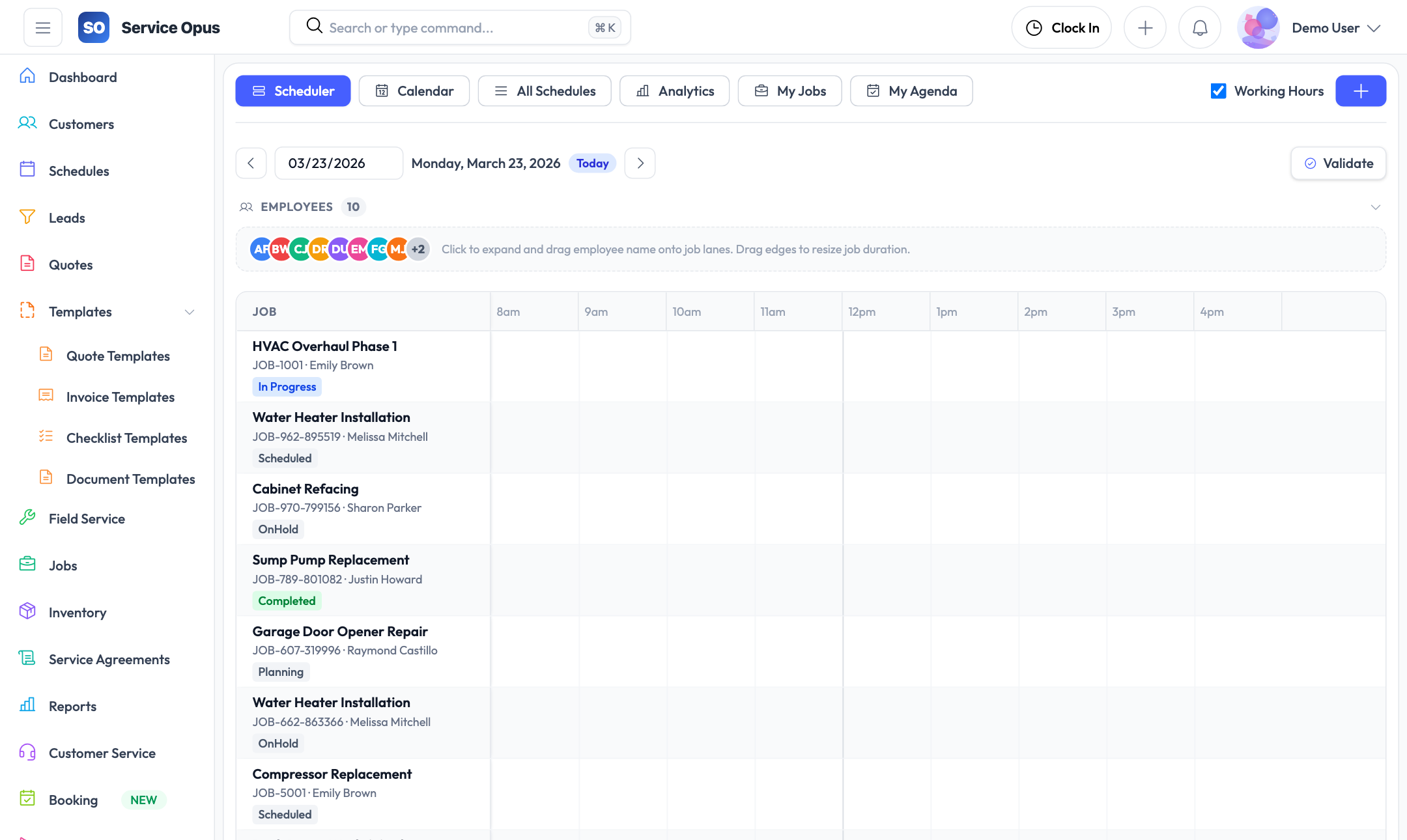
Visual swim-lane scheduler
The scheduler displays each employee as a horizontal row with the day's jobs laid out along a time axis. Jobs appear as colored blocks at their scheduled start time, sized by duration, with each employee color-coded for quick visual differentiation. Coordinators can drag employee cards onto job lanes to create or update assignments in real time.
- Each employee occupies a horizontal lane across the timeline
- Jobs displayed as time-proportional blocks (90px per hour)
- Employee color-coding configurable per person
- HTML5 drag-and-drop: drag an employee card to assign them to a job lane
- Resize schedule blocks to adjust duration visually
- Sticky left column with employee names; timeline scrolls horizontally
- Date navigation to view any day's schedule
FullCalendar view
The calendar view presents scheduled work in a familiar calendar format with daily, weekly, and monthly views. Each schedule block shows the job title and assigned employees. The calendar respects company working hours settings — configurable start time, end time, and working days — so the view matches how your business actually operates.
- Day, week, and month calendar views
- Working hours displayed based on company settings
- Working days of the week configurable (Mon–Fri, Mon–Sat, etc.)
- Scroll-to-start-of-day on calendar open
- Color-coded by employee for multi-technician visibility
All Schedules list
A paginated list of all schedules with date-range filtering. Useful for reviewing historical dispatch, finding a specific assignment, or exporting schedule data for payroll or customer billing purposes.
My Agenda
Each employee can view their own personal agenda — the list of schedules assigned to them across upcoming dates. My Agenda gives field technicians a clear view of their own upcoming work without exposing the rest of the team's schedule.
Schedule record fields
- Employee — who is assigned to this schedule block
- Job — the linked job (optional — schedules can be non-job time)
- Start time and end time — when the schedule block begins and ends
- Title — displayed on the calendar and scheduler blocks
- Status — scheduled, in progress, completed, cancelled
See it in action
Jobs that connect everything
From crew assignment and checklist completion through to invoice generation — job management in Service Opus keeps the whole team working from the same record.